
EntireShot — Full Page Screenshot
Published by Corsen AI. Captures stay in your browser profile.
Full-page screenshots you can trust. EntireShot scrolls the page, stitches the tiles, and checks its own work: each capture carries a diagnostics record and a verdict, and the editor tells you when it is incomplete and why.
Free · Version 0.1.0 · 5 languages
Before you install
What you need, then 3 steps.
- Chrome on a desktop system. Verified end to end in real Chromium on Linux, macOS and Windows.
- Nothing else: no account, no companion, no network.
- Install the extension and pin it.
- Capture. Click the EntireShot icon, or press
Alt+Shift+E(Option+Shift+Eon macOS). Right-click the page or the icon for the other modes: visible area, a region, one element, a scrolling panel, a delayed capture. - Read the verdict, then annotate, redact and export.
What you can do
Capture, check, edit, export.
- Capture. Full page, visible area, a selected region, a single element, or a scrolling panel: the inside of a chat, a table, a feed. Sticky headers and fixed footers appear exactly once; lazy-loaded content is loaded first; animations and video pause during the capture.
- Batch and responsive. Several tabs or a list of addresses in one go, packed into a ZIP; one page at several widths.
- Edit. Rectangles, ellipses, arrows, lines, pen, highlighter, text (right-to-left included), numbered markers and spotlight; crop, frames, layers, undo and redo.
- Redact for real. Secure Redact destroys the pixels in the exported file and removes the covered text from a PDF’s text layer. Blur and pixelate are offered separately and labelled cosmetic. Suggested redactions find emails, phone numbers and card numbers; you choose.
- Compare. Two captures side by side, with a wipe, an overlay or the differences, ignoring the areas you mark as expected to change.
- Export. PNG, JPG, WebP, and PDF with clickable links and searchable text; print or copy; filenames from a template; a silent mode that saves or copies without opening anything.
- Keep a record. A capture receipt (JSON with SHA-256 hashes), an optional page archive (MHTML), the page’s own text in reading order, and text recognition on your device in five languages.
What it does not do
Nothing leaves your device.
- No account, no upload, no analytics, no crash reporting, no advertising identifiers.
- The extension makes no network requests; a release gate refuses any build that references a network destination.
- No silently incomplete image: when part of a page could not be captured, the verdict says Partial and the info panel names the reason.
- Optional permissions are requested only when you turn on the feature that needs them, after an explanation that quotes Chrome’s own dialog, and can be removed again in Chrome.
Founder access. Every installation from the launch period keeps every feature, current and future, forever. No account is needed to take a screenshot, now or later.
Permissions
Every permission, and why.
Chrome shows its own wording when it asks; here is what this extension does with each permission, from its store listing.
| Permission | What it is used for | When |
|---|---|---|
activeTab | To photograph the tab you acted on. | On your click, shortcut or menu item only |
scripting | To inject the measuring and scrolling agent into that tab. | Same gesture; never on pages you did not act on |
storage | Preferences, the installation identifier and the plan record. No page content. | At install |
offscreen | To stitch the tiles on a canvas (a service worker has no DOM). | During a capture |
contextMenus | The right-click capture entries on pages and on the icon. | Registered at install, inert until used |
downloads (optional) | Saving into a chosen subfolder, and silent saving. | When you turn it on, after an explanation |
clipboardWrite (optional) | Copying a capture without opening the editor. | When you turn it on |
pageCapture (optional) | Keeping the page as an MHTML archive with a capture. | When you turn it on; captured tab only |
identity (optional) | The optional sign-in window to protect Founder access. Dormant in this release, which names no account provider. | Only on your click, after an explanation |
Host access (optional) | Capturing several tabs, or one page at several widths, without a click on each; reading the links and text of embedded frames from other sites. | From the batch page or PDF settings, after an explanation |
Not requested in any build: debugger, tabs, history, webRequest.
Data it handles
Where your data goes.
EntireShot collects no data. Screenshots, page content, page addresses and browsing activity never leave your device. Captures, annotations and settings live in your browser profile; deleting them in the library, or removing the extension, removes them.
On install, the extension generates a random installation identifier and a key pair, stored locally, to record your plan. They are never derived from your device, account or browsing, and they are not sent anywhere today.
Version
EntireShot 0.1.0
Version 0.1.0, in English, French, Spanish, German and Portuguese (Brazil), the interface included.
Questions
Asked often.
What does the verdict mean?
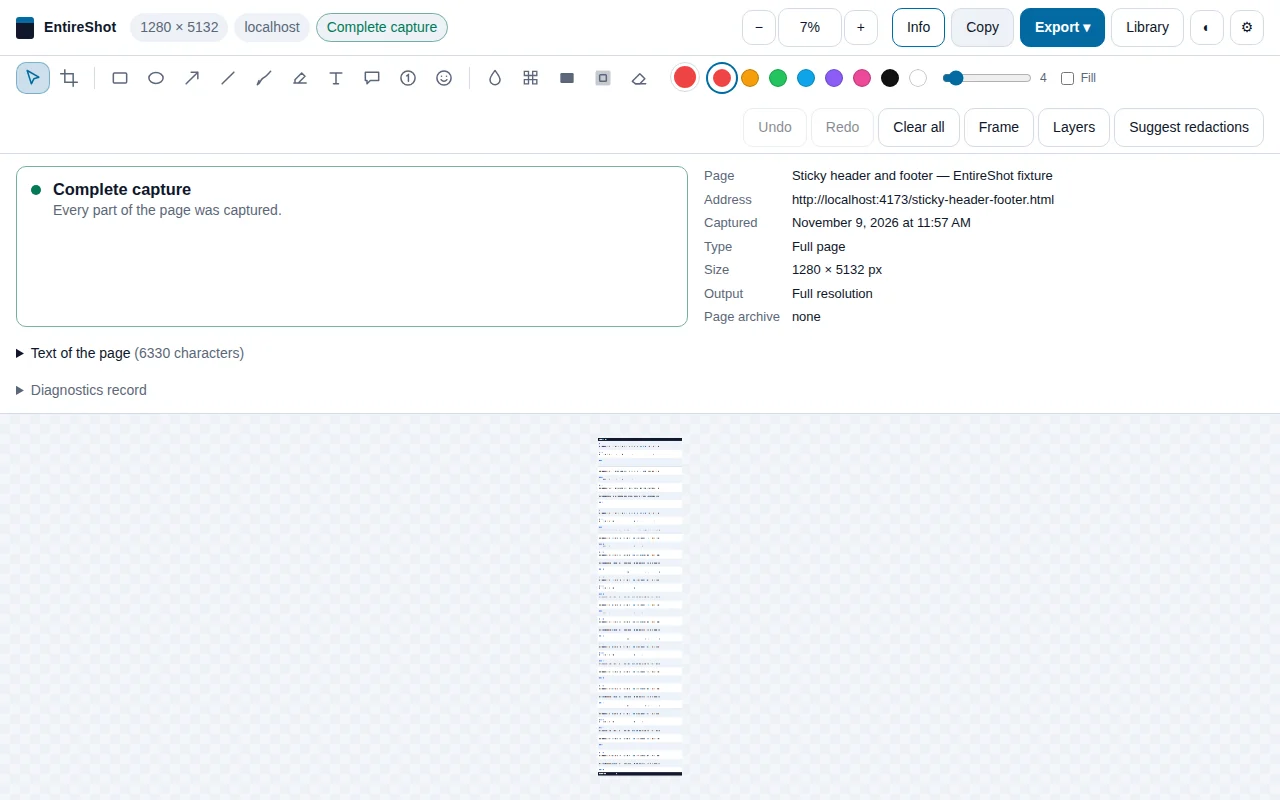
Complete: everything planned was captured. Likely complete: captured, with a detail worth knowing, for example a scroll that snapped. Partial: part of the page is missing, and the info panel names the reason. The verdict is the extension’s honest assessment, not a guarantee.
Is blur a redaction?
No. Blur and pixelate are cosmetic and labelled so. Secure Redact is the tool that destroys the pixels in the exported file and removes the covered text from a PDF’s text layer.
Why did I get several images?
A page taller than one image can hold on your computer is delivered in consecutive full-resolution parts rather than scaled down. The editor says “Part 1 of N”, the library keeps the parts together, and “PDF, all parts” exports one document.
Why can’t a page be captured?
Chrome does not let extensions read its own pages (chrome://), other extensions’ pages or the Chrome Web Store. Local files (file://) need “Allow access to file URLs” in the extension’s details.
Where are my captures?
In the library, stored in your browser profile. Nothing is uploaded anywhere. Retention limits are yours to set in Settings › Library; by default nothing is deleted unasked.
Support and links